


PDF Reader
3.250.00 Reviews
App Specs
- Version
- 6.0.2
- Updated On
- License
- Free
- Downloads
- 1,000,000+
- Developer
- Droid Planet
- Categories
- Business
- Platform
- Android
Screenshots
 Analysis by AppCompare
When a PDF arrives while I’m away from my desk, I want to open it quickly, read the important parts, and get on with the day. That’s the simple job this business app is meant to handle. PDF Reader, from Droid Planet, is free, has an Everyone content rating, and has drawn a 3.2 average from around 2,100 ratings. Its appeal is straightforward: it gives people who deal with documents on a phone a place to start without paying upfront.
What I would use it for
A mobile PDF reader earns its keep in small, practical moments: checking a form before sending it back, reviewing a handout between appointments, or pulling up a reference document while travelling. I find that kind of use more convincing than treating a phone as a complete replacement for a computer. A screen is fine for checking a few pages or locating a detail, but it is less comfortable for long stretches of close reading or careful editing.
The app has reached over a million installs, which suggests it has found an audience among people looking for a dedicated document tool. That does not make it the right fit for everyone. If you only open a PDF now and then, the reader built into your phone or an app you already use may be enough. If documents are part of your regular routine, having a separate place to read and manage them can be worthwhile.
Your Portable Document Hub
First off, let’s talk about the sheer convenience of having PDF Reader right on your device. Whether you’re on Android or iOS, this app is super handy for viewing all sorts of PDF files. Imagine having a miniature office in your pocket – that’s exactly what it feels like.
Features That Impress
So, what makes this app stand out from the crowd? Well, for starters, it’s not just about reading PDFs. You can also annotate documents. Yeah, that’s right! Highlight important sections, add sticky notes, and even draw on the document. It’s like having a digital highlighter and notepad right at your fingertips.
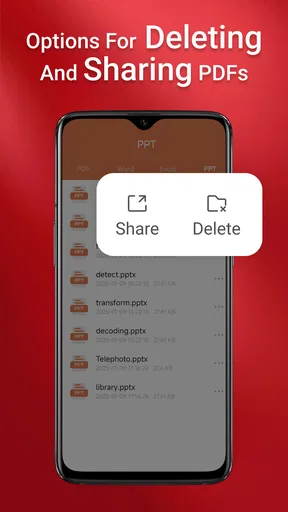
Besides, the app lets you organize your files neatly. You can create folders, rename files, and even share them with your colleagues or friends. It’s amazing how much smoother my workflow has become since I started using it.
A workflow that stays manageable on a phone
For me, the useful question is not simply whether a reader can display a file; it is whether I can find the right version again after opening several documents. A practical habit is to rename a file as soon as its purpose is clear, then put it in a folder that reflects the task rather than its sender. That small bit of housekeeping can save time when a meeting or deadline is close. It is also a sensible way to avoid sharing a similarly named attachment by mistake.
Worth Reading Before You Choose

Flipboard Shows What News Apps Must Do Beyond the Feed

Switching to Android Auto Means Rethinking Your Driving Routine

Google Calendar Makes a Crowded Week Easier to Manage

Ludo King Makes the Most of the Minutes Between Plans

Baby Panda World Brings Quick Play to Modern Phones, but Its Game Library Feels Busy

ESPN’s Live Game View Makes Following Close Games Easier
Annotations are most helpful when they remain selective. I would use a highlight for a key figure or clause, and a short note to record what I need to ask about later, rather than mark every paragraph. On a phone, restraint matters: a crowded page is difficult to review, especially when returning to it quickly. Before sharing an annotated copy, I would also check that the marks are intended for the recipient, since comments can reveal questions or working notes that were only meant for me.
One everyday example is receiving a policy document just before a call. I can open it, mark the section I want to discuss, add a note about the point that needs clarification, and share the file with a colleague afterward. That is a useful phone-sized workflow, but it is not a substitute for a proper document approval process when several people need to edit, track changes, or maintain a formal record.
Performance and Interface
When it comes to performance, this app doesn’t disappoint. It opens documents in a jiffy, and the scrolling is buttery smooth. Plus, the interface is intuitive. Even if you’re not tech-savvy, you’ll find it easy to navigate through the app. The developers have done a fantastic job ensuring the user experience is seamless.
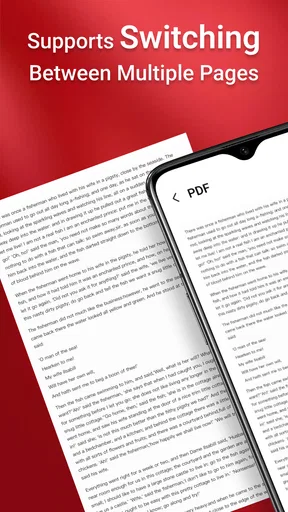
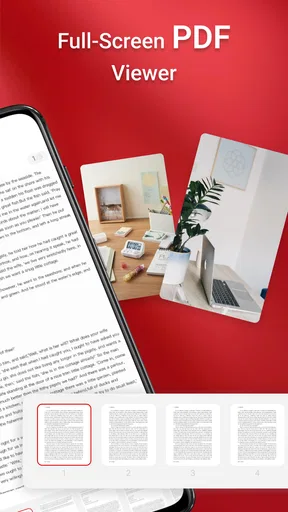
I also appreciate the app’s ability to handle large files without hiccups. Whether you’re working with a single-page PDF or a hefty 200-page document, PDF Reader manages it all effortlessly.
What speed feels like in everyday use
For the kind of quick checks that make up most phone reading, responsiveness matters more than a long list of tools. I value being able to get to a document, move through it, and return to the page I need without turning a simple task into a project. Still, perceived speed can vary with the phone, the size and complexity of the file, and what else is running. I would not treat a smooth first opening as proof that every heavy PDF will behave the same way.
When a file feels slow, I would first try a low-effort reset: close the document, reopen it, and make sure I am not juggling several demanding apps at the same time. If a file remains awkward to navigate, viewing only the relevant pages or switching to a larger screen may be more comfortable than repeatedly forcing the phone through a long session. Those are practical workarounds, not guarantees about how the app handles every document.
Heavy documents and sensible expectations
Long manuals, image-heavy reports, and scanned paperwork can be tougher than ordinary text PDFs. Even if a reader opens them, jumping around, zooming, and making annotations may feel less comfortable on a compact display. I would use this app for finding a section or checking a page while away from a desk, then move to a tablet or computer if I needed to compare multiple pages or make extensive notes. That division of work is often more efficient than expecting one phone app to do everything.
There is also a useful distinction between viewing a document and working through a whole document workflow. Reading and marking a file on the move is convenient; reviewing tiny charts, checking layout details, or coordinating edits with a team calls for more screen space and a more specialized setup. If your work depends on those tasks every day, a desktop PDF suite or a collaboration-focused tool is likely a better primary option.
Extra Perks
One of the coolest features is the ability to convert files from other formats into PDFs. This is particularly useful if you’re dealing with Word documents, images, or spreadsheets. It’s like having a Swiss Army knife for document management.
And let's not forget the cloud integration. You can sync your files with services like Dropbox, Google Drive, or iCloud. This means all your documents are accessible anywhere, anytime. Talk about convenience!
Choosing between a reader and broader office tools
Compared with the basic PDF viewers that come preinstalled on many phones, the combination of annotations and file organization can make a dedicated app more useful when documents recur in your routine. On the other hand, if you already rely on an office suite for writing, storage, and collaboration, adding another app may create a second place to check rather than simplifying your work. I would choose based on the task: a focused reader for opening, marking, and sorting PDFs; a broader office tool when editing and team coordination are central.
Cloud access can help when the same document needs to be available on more than one device, but it is worth being deliberate about where a file is stored and which version you are sharing. Before depending on a cloud copy during a commute or appointment, open it while you have a reliable connection and confirm you can reach the version you need. For sensitive work, follow your organization’s storage rules rather than assuming that convenience alone makes a particular workflow appropriate.
Conversion is similarly best treated as a convenience, not a promise that every source document will preserve its layout perfectly. If a converted file matters, check page breaks, tables, and images before sending it on. That quick review is especially worthwhile for a spreadsheet or a form, where a shift in spacing can change how easy the document is to understand.
Security Matters
In a world where data breaches are all too common, it’s reassuring to know that this app takes security seriously. You can password-protect sensitive documents, ensuring that your information stays safe from prying eyes. It’s peace of mind in an app.
Privacy-conscious document habits
Password protection can be useful for limiting casual access to a file, but I would not treat it as a complete security plan. The strength of the protection depends on how the document is created and shared, and a password does not prevent someone from seeing a file that is already open on an unlocked device. For work paperwork, I would use a strong, distinct password where appropriate and avoid sending the password in the same message as the document.
I would also think about the path a file takes before it reaches the reader. A document stored in a shared folder or sent to the wrong person remains exposed regardless of which app opens it. If you handle financial, health, or company information, check the rules that apply to your workplace and keep only the copies you actually need. These habits matter more than relying on any single feature.
Device fit and reliability
The current version is 6.0.2, and the app is listed for devices running Android 7.0 or later. That makes the operating-system requirement relevant if you are keeping an older phone in service. Even when a device meets the minimum, available memory, screen size, and the condition of the phone can shape how comfortable document work feels. I would leave some breathing room on a heavily used device and avoid judging performance from one unusually large file alone.
If a document fails to open or the app behaves inconsistently, I would start with the basics: confirm the file is fully downloaded, try reopening it, and check whether the problem follows that particular file or happens with several. Keeping an original copy before converting or annotating is a good precaution when the document matters. It gives you a fallback if the version you marked is not the one you intended to send.
Droid Planet released the app on January 10, 2025. Its 50 reviews give potential users a modest amount of written feedback to consider alongside the 3.2 average, rather than a reason to assume every device or workflow will feel identical. I would try it with ordinary, non-sensitive files first and see whether its organization and reading approach suit my own habits before making it central to daily work.
Final Thoughts
In a nutshell, the PDF Reader app is a must-have for anyone who frequently deals with documents on the go. Its robust features, combined with an easy-to-use interface, make it stand out as a top choice for personal and professional use. If you haven’t tried it yet, give it a whirl. You might just wonder how you ever got by without it!
Ready to give it a shot? You can find it on the Google Play Store for Android or the App Store for iOS. Trust me, your mobile document management is about to get a whole lot easier.
Who should make it their everyday reader
I see the clearest fit for someone who routinely receives PDFs, wants to mark a few points, and prefers to keep work and personal documents arranged on a phone. Students checking course material, freelancers reviewing a brief, and people who need to pass a marked document to a colleague can all benefit from that kind of compact workflow. It is less compelling for someone who only opens an occasional attachment, or for a team that needs shared editing, audit trails, or precise page-layout control.
My practical verdict is to approach it as a handy mobile companion rather than an all-purpose office. Its business focus, free price, and feature set make it easy to try, while the modest average rating is a reason to judge it on your own device rather than assume a flawless experience. If quick reading, basic markup, and keeping files in order are your priorities, it is worth testing with a few everyday PDFs. If your priority is deep editing or tightly managed collaboration, I would choose a tool built specifically around that work.
Pros
- User-friendly interface for easy navigation.
- Supports various file formats beyond PDF.
- Fast and smooth document loading.
- Annotation tools are intuitive and versatile.
- Offline access to saved documents.
Cons
- Contains ads in the free version.
- Limited cloud integration options.
- Some features require in-app purchases.
- Occasional crashes on older devices.
- No dark mode for night reading.
FAQs for PDF Reader
What features does the PDF Reader app offer?
The PDF Reader app provides a wide array of features, including the ability to view, annotate, and edit PDF documents. It supports text highlighting, adding notes, and filling forms. Users can also merge documents, convert files to different formats, and utilize cloud storage integration for easy access across devices.
Is the PDF Reader app free to use?
The PDF Reader app typically offers a free version with basic features. However, to unlock advanced functionalities such as editing, converting, and cloud integration, users may need to purchase a premium subscription. It's advised to check the app store listing for detailed pricing information.
Does the PDF Reader app support multiple file formats?
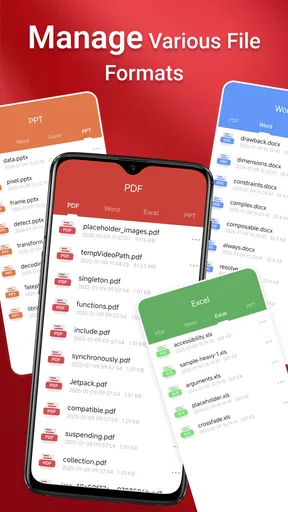
Yes, the PDF Reader app supports a variety of file formats beyond PDFs. Users can open and convert documents such as Word, Excel, and PowerPoint files. This versatility makes it a comprehensive tool for managing different types of documents on both Android and iOS devices.
Can I use the PDF Reader app offline?
Yes, many features of the PDF Reader app can be used offline. Users can view and annotate documents without an internet connection. However, certain functions, such as cloud synchronization and online conversions, require internet access. Make sure to download necessary documents beforehand for offline use.
Is the PDF Reader app secure for handling sensitive documents?
The PDF Reader app prioritizes user security by offering features like password protection and encrypted file transfers. It’s important for users to regularly update the app to the latest version, ensuring all security patches are applied and personal data remains safeguarded.


